
Visual tour
This page walks through the integration the way you meet it in Home Assistant: finding the battery, reading battery health, adding the cards, linking a smart plug, driving charge and discharge, and hooking the Energy dashboard. Each step has a screenshot.
The pictures use two lab batteries, Venus E (3.0) and Venus A, plus a stand-in energy meter. Your device names and numbers will differ. Venus E in these shots already has a capacity estimate. Venus A is still collecting its first runs, so you can see both states.
The overview is the README. The calculation behind the estimate is Battery health.
Discovery and setup
Turn on Open API in the Marstek app first. It is the local interface the integration talks to (glossary). Keep Home Assistant on the same network as the battery, so discovery can find it. Then:
- Go to Settings > Devices & services.
- Choose Add integration and search for Marstek.
- Pick the battery from the discovered list.

When discovery finds nothing, or every discovered battery is already added, Home Assistant asks for the IP address and the port. The port in the Marstek app is 30000 unless you changed it. The full steps, including what happens when the IP changes later, are in Configuration.
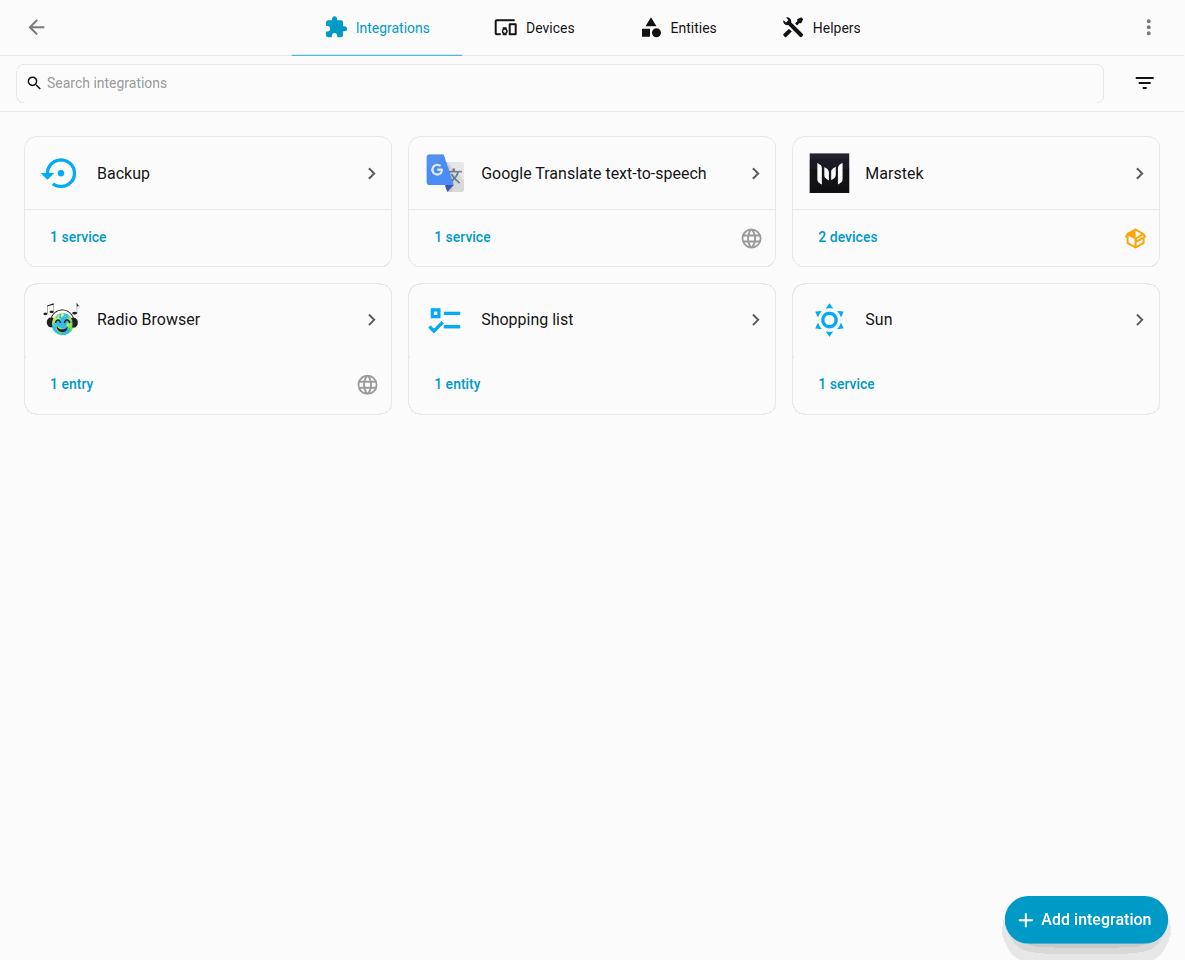
After setup, Marstek shows on the Integrations page with one device per battery.
The device page groups the sensors, the operating-mode select, and the controls.
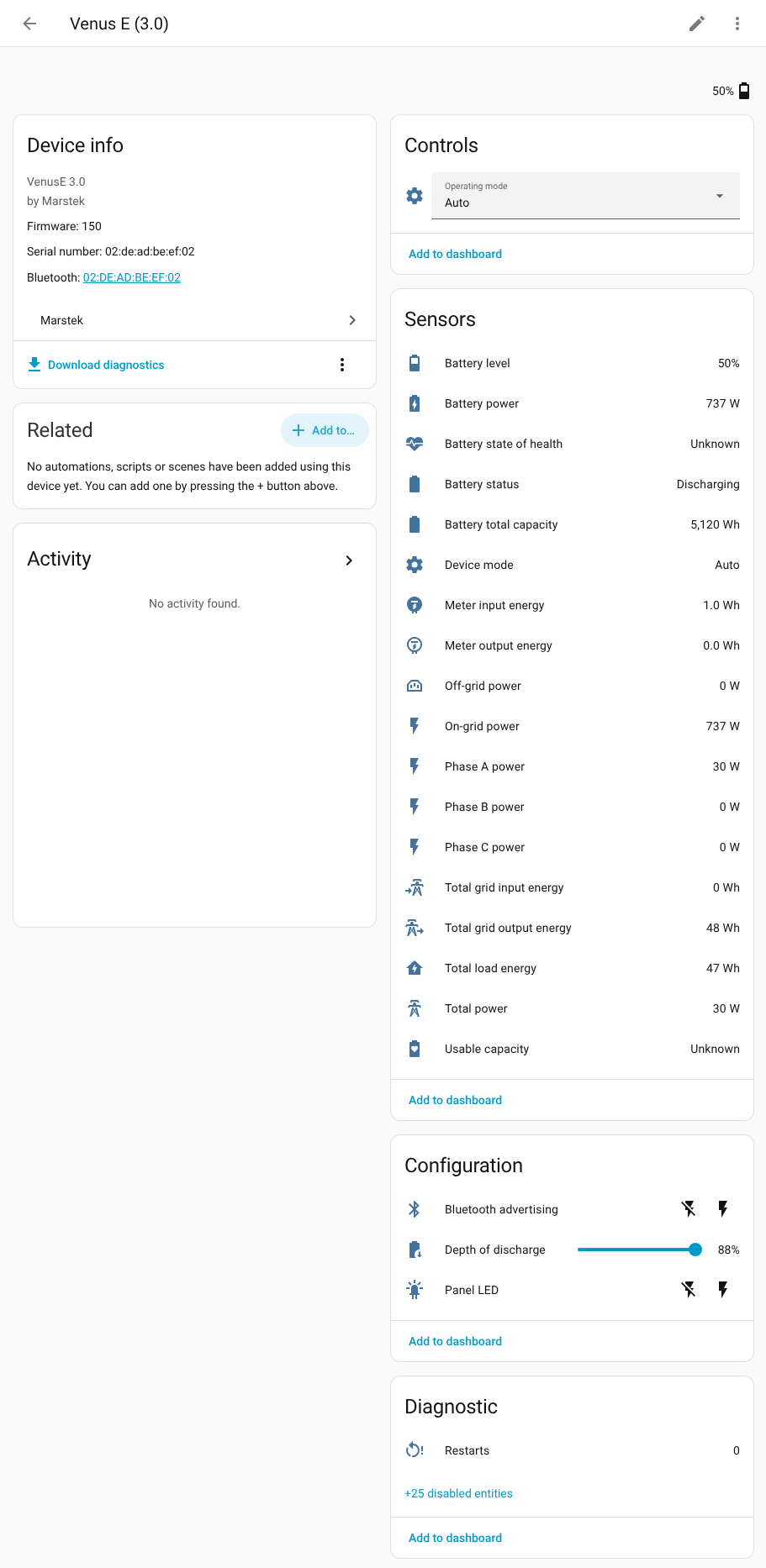
A few diagnostic sensors, including Battery temperature, start disabled. The request behind them has been suspected of resetting some batteries, so the integration waits until you opt in. To turn one on, go to the device page, show disabled entities, and open Battery temperature (or another battery-detail entity). Then open the gear and turn Enabled on. On recent firmware the integration starts asking for that data on its own. On older firmware those entities are not offered at all. The full list is in Entities.
Technical details
The battery-detail entities come from the Bat.GetStatus request. The integration only sends it while at least one of those entities is enabled (#14).
Battery health sidebar dashboard
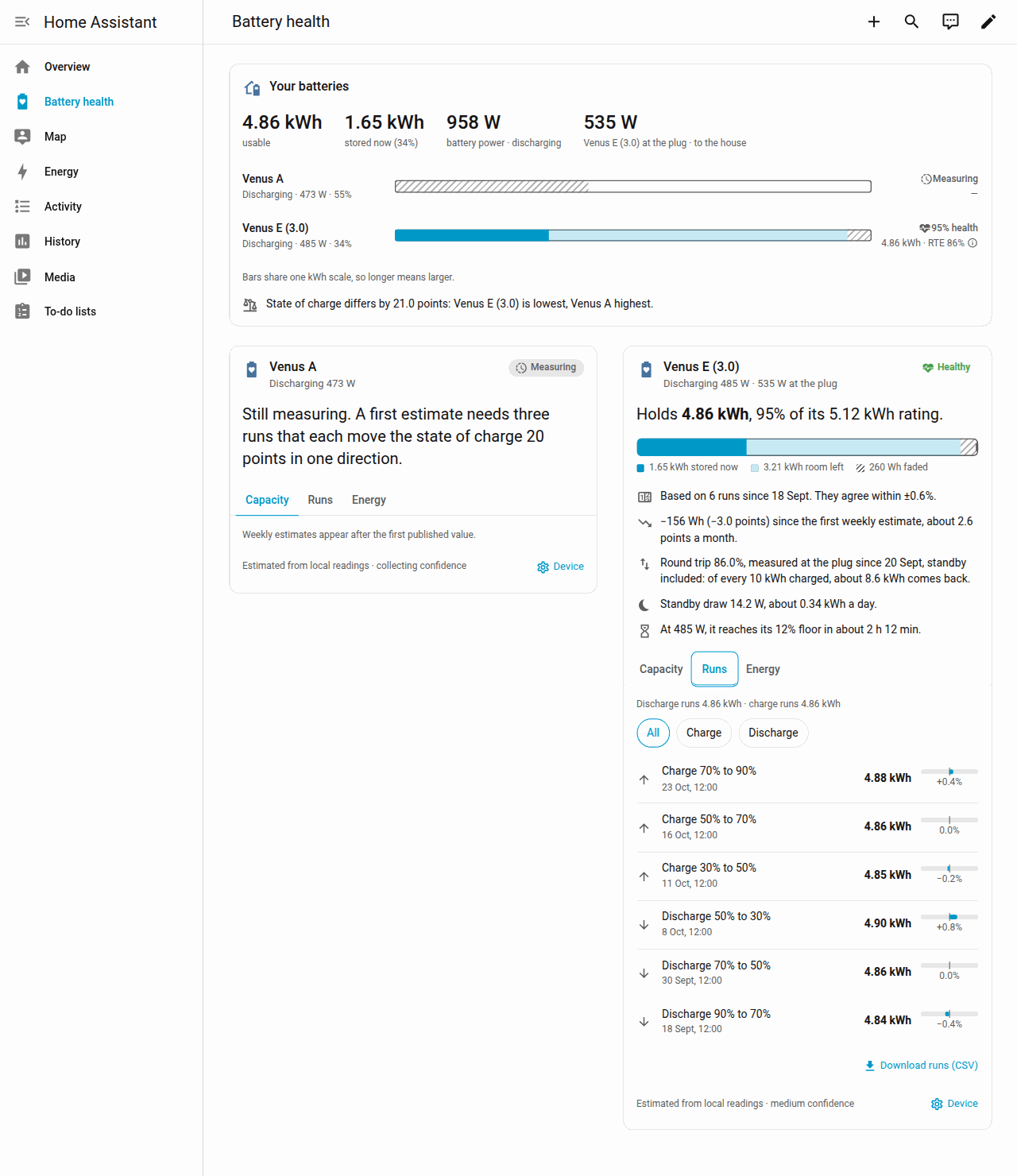
The sidebar dashboard compares every Marstek battery. It is off until you turn it on.
- Go to Settings > Devices & services > Marstek.
- Open a device and choose Configure.
- Open Battery health dashboard.
- Turn on Show Battery health in the sidebar and submit.
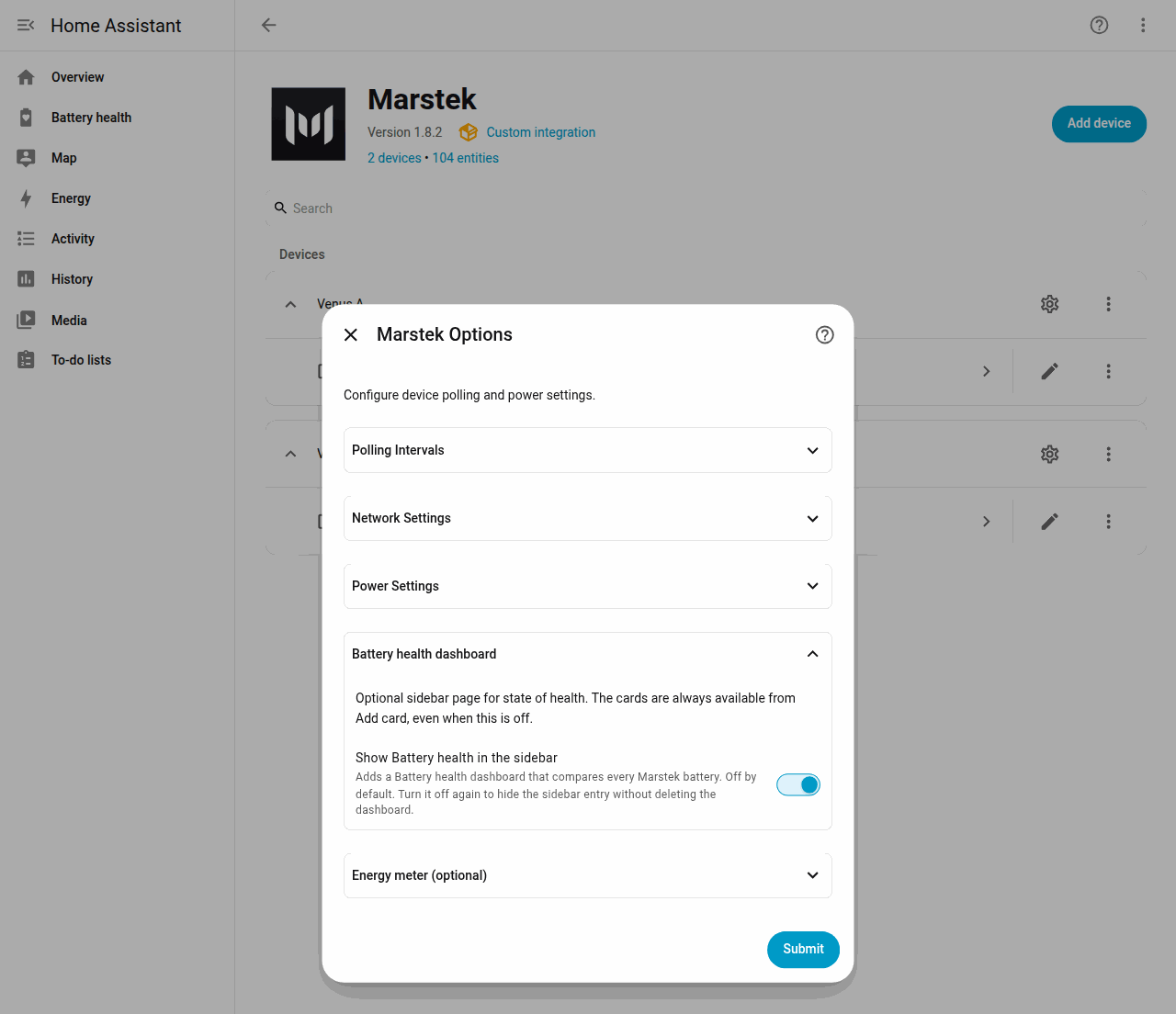
The helper text on that toggle is the whole contract: the page compares every Marstek battery, it starts off, and turning it off again hides the sidebar entry and keeps the dashboard. Reload the browser if Battery health does not appear. In Dutch the title is Batterijgezondheid.
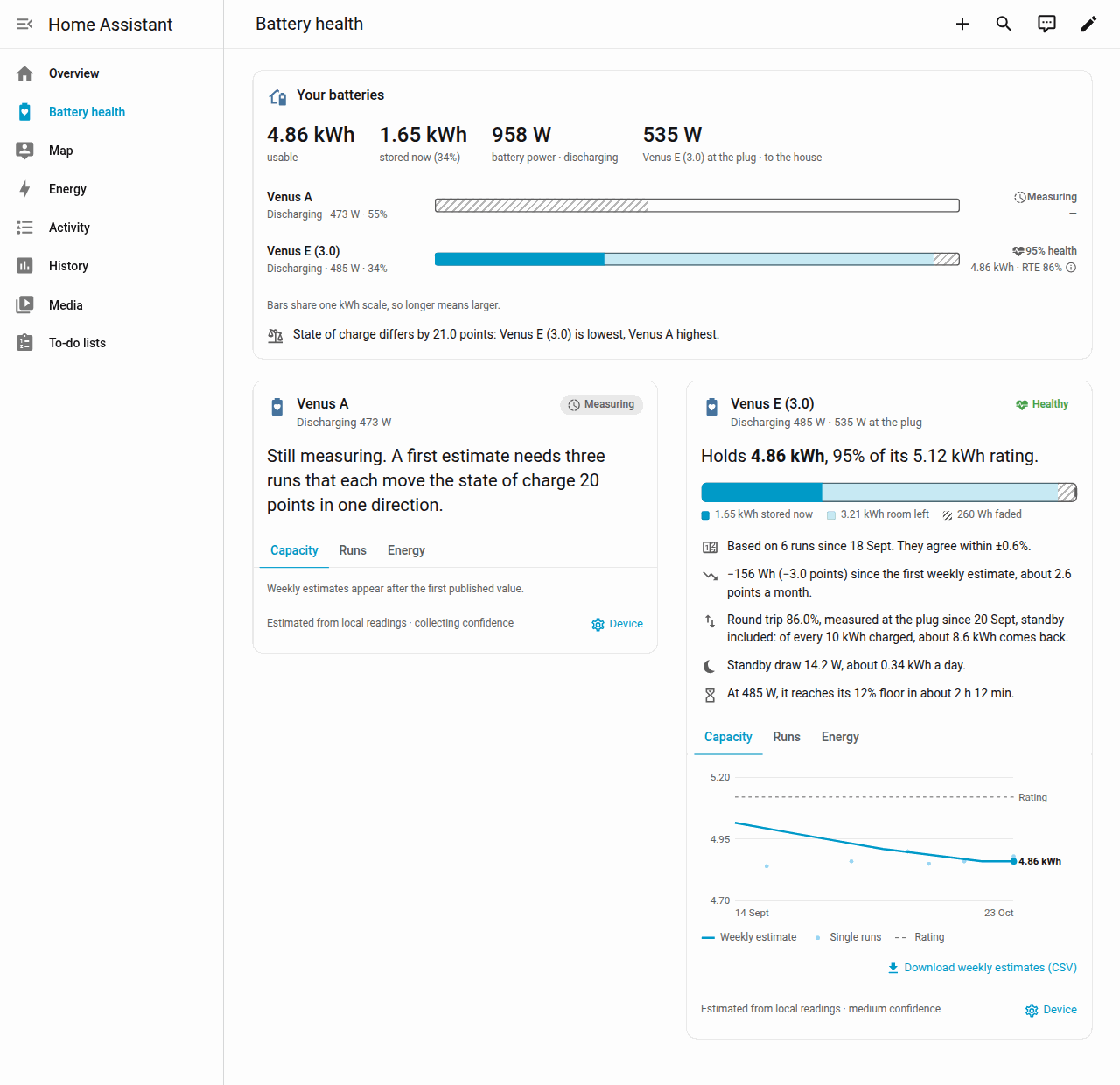
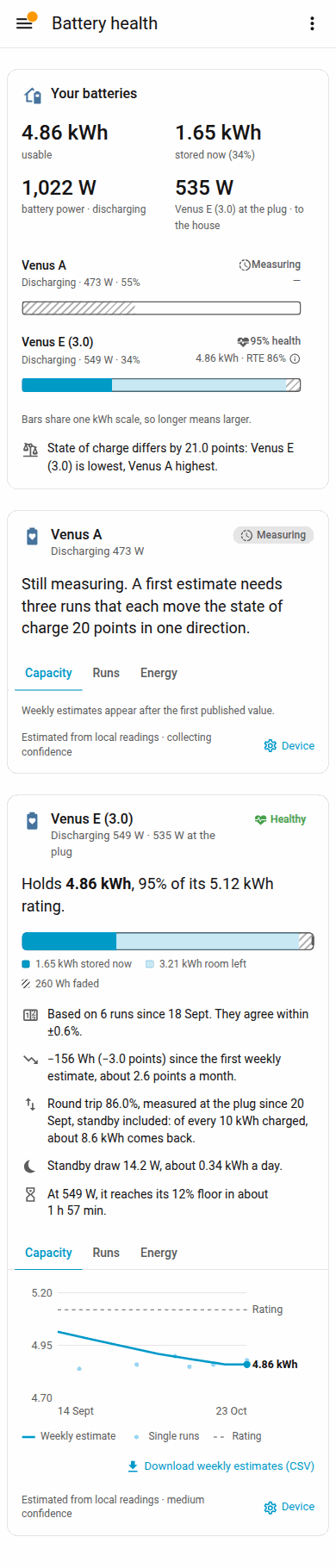
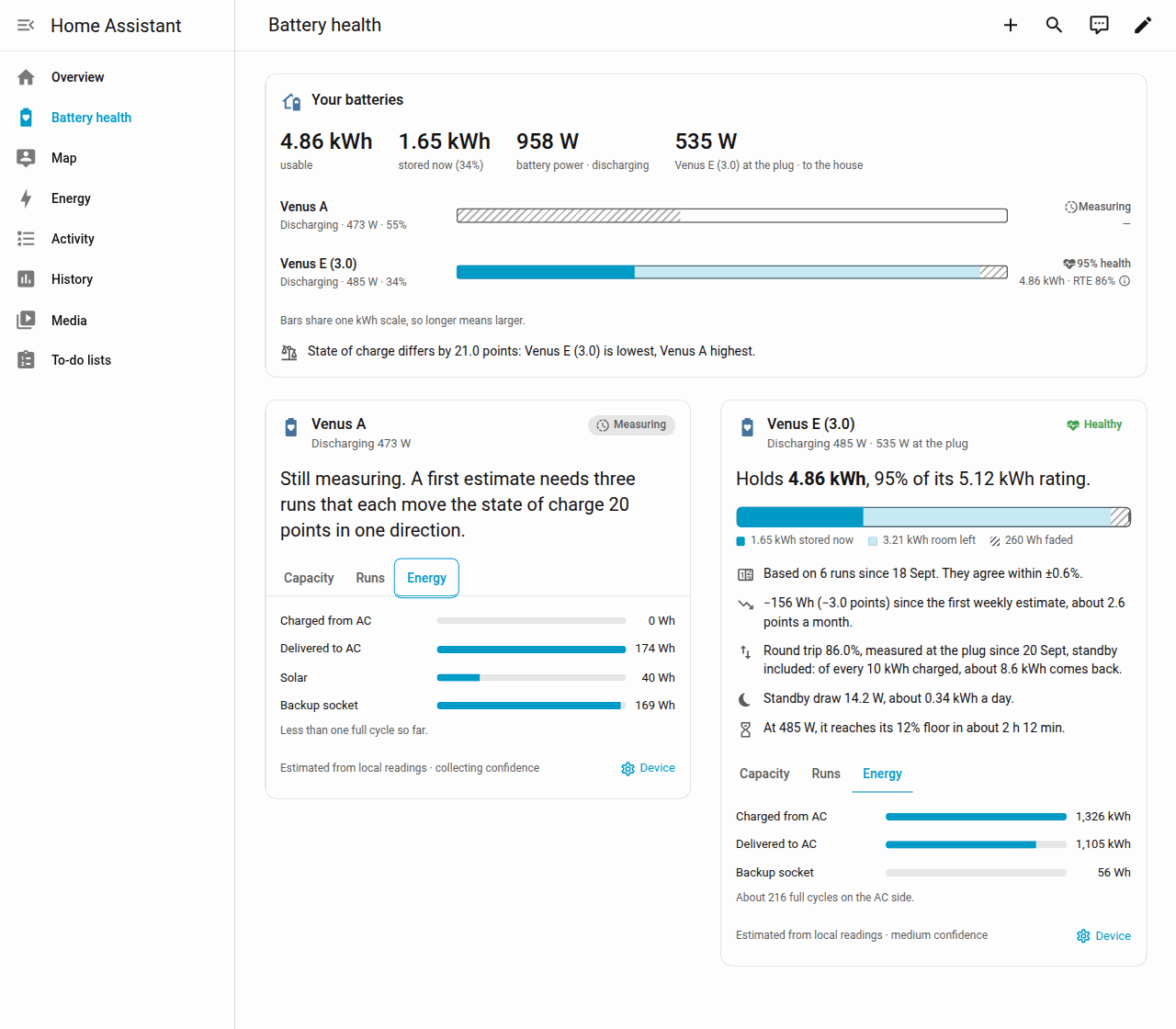
Your batteries is the fleet card:
- usable is the sum of the estimates.
- stored now is the energy in the packs, with the fleet state of charge.
- battery power is the combined charge or discharge power.
- at the plug appears once a smart plug is linked, and the label names which battery's plug it is.
The bars share one kWh scale, so a longer bar is a larger battery. A line under the bars calls out a wide gap in state of charge.
Each battery card has a band: Healthy (90% or more), Fading (80% up to 90%), Worn (below 80%), Measuring until charge and discharge runs both back the estimate, or Uncertain while the charge-level drift is 5% or more or the runs disagree by 10% or more. Venus E on the screenshot holds 4.86 kWh, 95% of its 5.12 kWh rating, with the weekly chart on the Capacity tab. What each insight sentence means is on the Battery health page.
On a phone the same page stacks the totals in two columns and stacks the cards.
Battery health cards on any dashboard
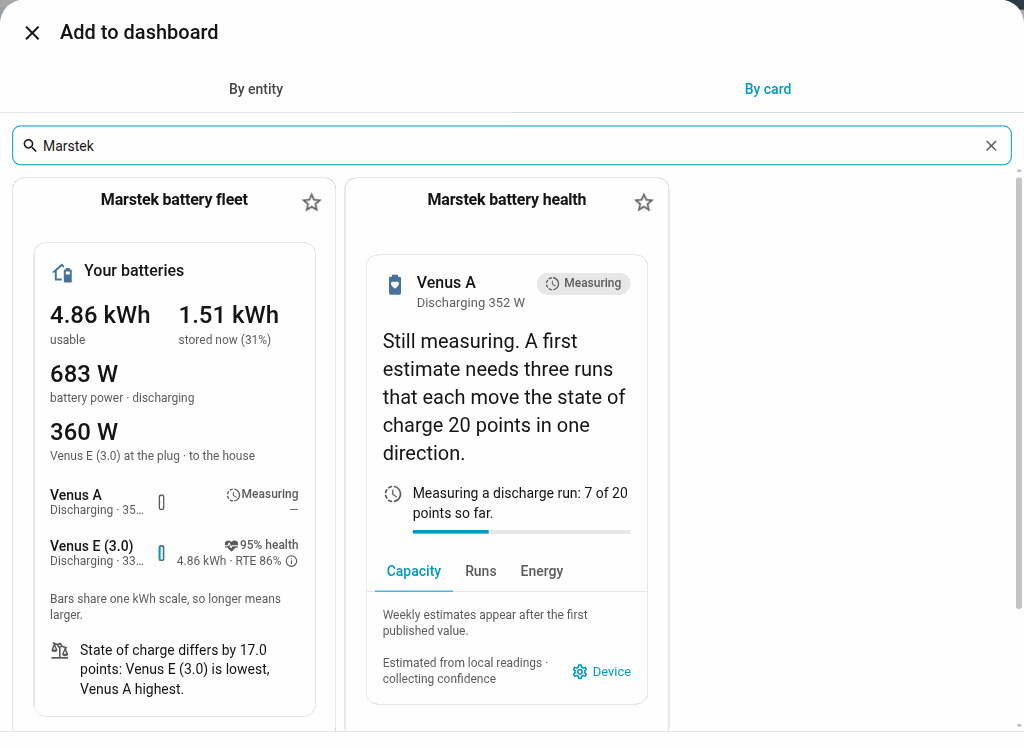
The same two cards can go on a dashboard you already have. The integration adds the cards to Home Assistant for you. After you install or upgrade, reload the browser and the cards are in the picker. You don't need to add a dashboard resource by hand.
- Open the dashboard and choose Edit dashboard, then Add card.
- Open By card.
- Type
Marstekin Search cards, or scroll down to Custom cards. - Choose Marstek battery health (
custom:marstek-battery-health-card) for one battery, or Marstek battery fleet (custom:marstek-battery-fleet-card) for the comparison.
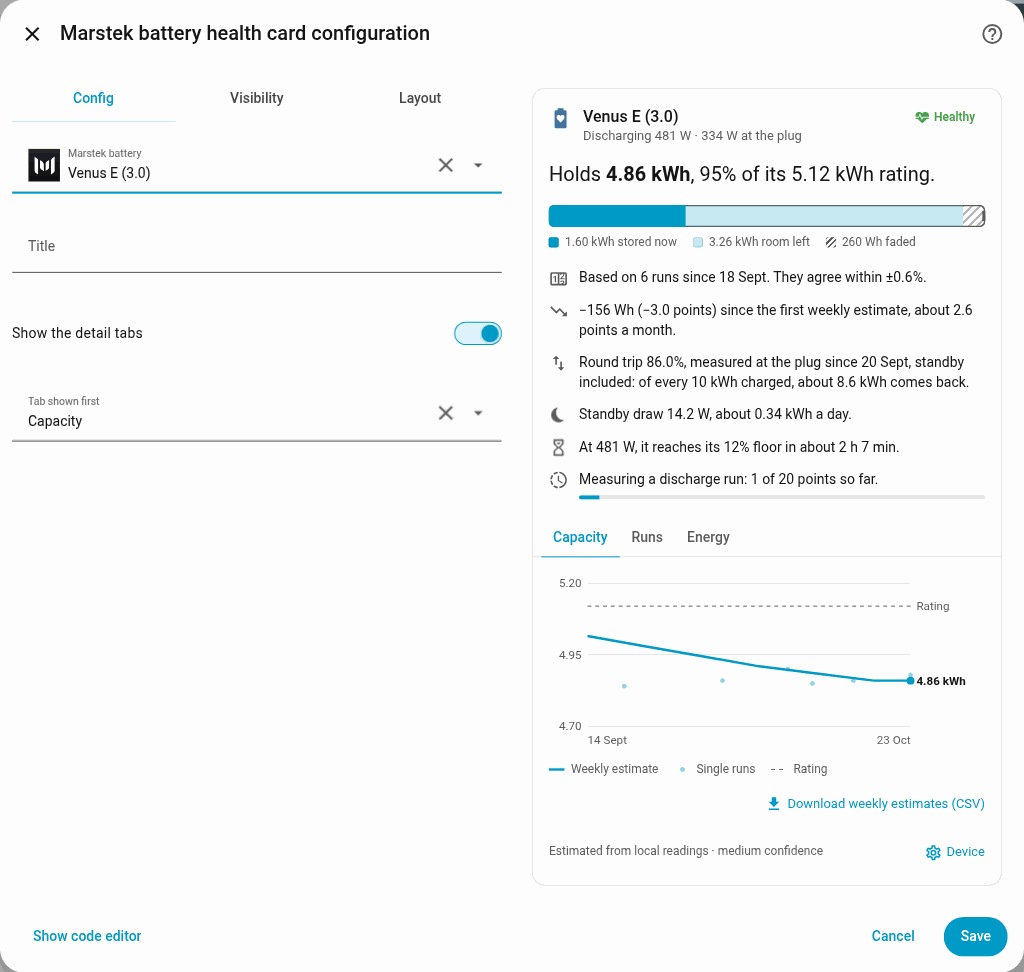
The visual editor asks for the battery, an optional title, whether the detail tabs show, and which tab opens first.
The picker keeps the English card names in every language. The words on the card follow your Home Assistant language (English and Dutch).
Capacity, Runs, and Energy
Capacity is the weekly chart: the estimate as a line, each run as a dot, and the rating as a dashed line. Download weekly estimates (CSV) saves the weeks. The chart stays empty until the first estimate is published, which is what Venus A shows.
Runs lists every run, newest first. A run is a charge or discharge that moves the state of charge by 20 percentage points. The list shows eight runs to a page, with All, Charge, and Discharge filters. Each row compares that run with the median for its direction. Download runs (CSV) saves every kept run.
Energy shows lifetime Charged from AC and Delivered to AC. Solar appears on models with solar inputs (PV), such as Venus A. Backup socket appears once the off-grid output has delivered energy. The last line is equivalent full cycles, or "less than one full cycle" until the battery has delivered as much energy as its rated capacity.
Why the card says Still measuring
A first estimate needs three runs in one direction. Each run has to move the state of charge by 20 points, all charging or all discharging. The card counts the runs so far in each direction and shows progress on the open run, for example "3 of 20 points so far." The band stays on Measuring until both directions have three runs. The plain-language version is Why does my card say Still measuring?.
Link a smart plug
A plug between the battery and the mains measures the round trip the battery's own sensors cannot, because those sensors miss the power the battery uses to stay awake. Use a HomeWizard Energy Socket, a Shelly plug, or any meter with two total-energy sensors. The plug has to see only this battery, not the whole house.
- On the plug's device page, enable the export sensor. On HomeWizard it is named Energy export, and Home Assistant leaves it disabled until you enable it. Energy import is energy into the battery.
- Open Settings > Devices & services > Marstek > your battery > Configure.
- Open Energy meter (optional).
- Set Energy into the battery and Energy out of the battery. Fill both, or leave both empty, and pick two different sensors.
- Submit.
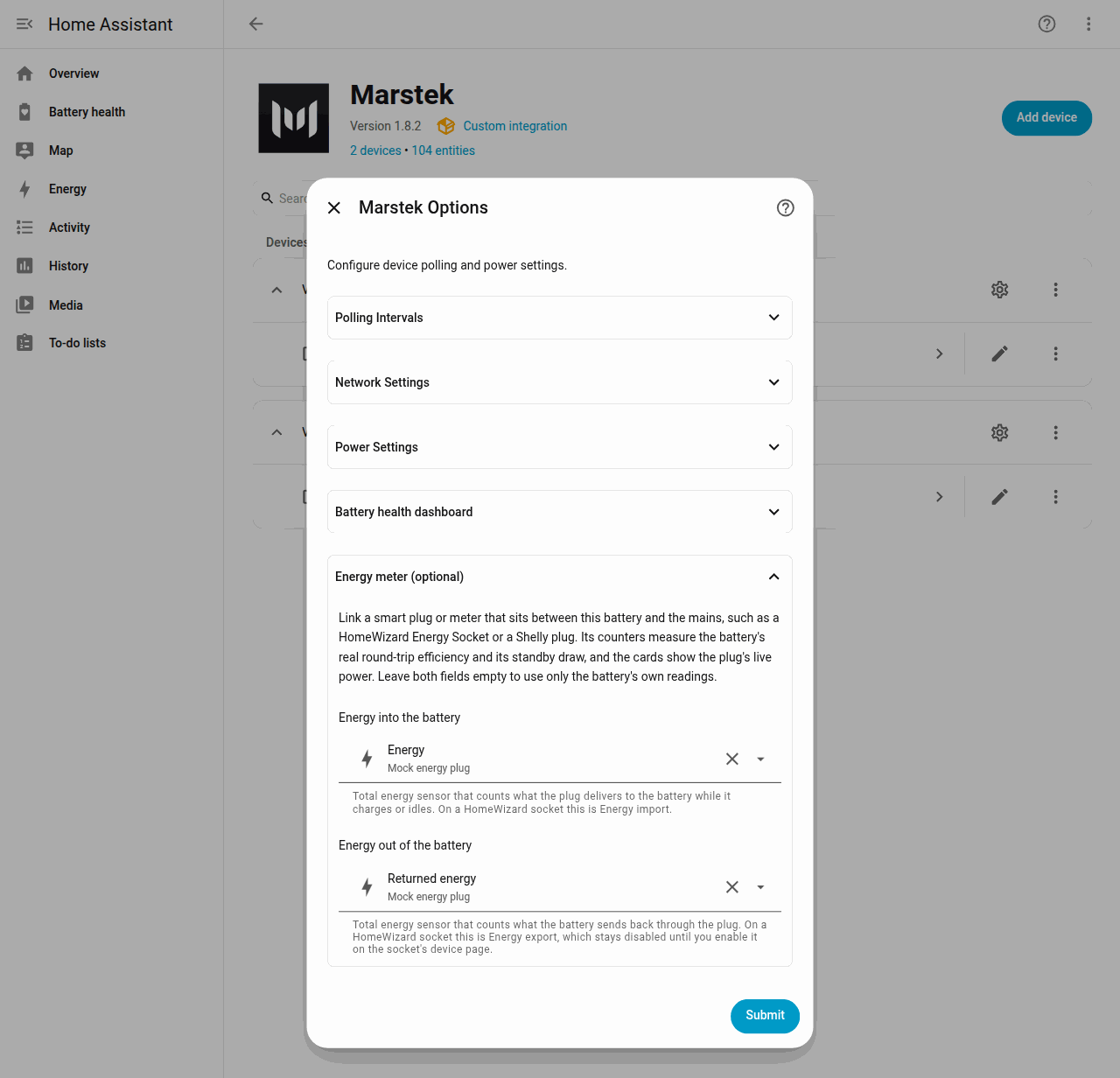
The lab meter in the screenshot is named Mock energy plug. On a HomeWizard socket the two sensors are Energy import and Energy export.
After the next matching state of charge, the cards can show:
- Live plug watts, in the card header and as at the plug on Your batteries.
- Round-trip efficiency measured at the plug, standby included, written as what comes back from every 10 kWh charged.
- Standby draw: the usual plug reading while idle, in watts and in kWh a day at that rate. Wake pulses are not included.
Details and the rules (both sensors, or neither) are in Options and Link a smart plug.
Controlling the battery
Auto, AI, and, on firmware that allows it, UPS are on the operating-mode select on the device page. Manual and Passive need a power, a duration, or time slots, so they are services rather than a dropdown choice. The glossary explains what each mode does.
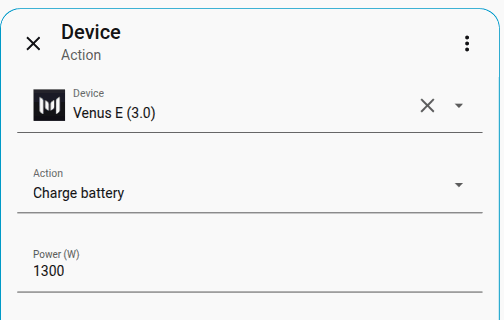
In an automation, choose the action type Device (a device action), pick the battery, and use Charge battery, Discharge battery, or Stop charging/discharging. Empty power fields use the defaults from Options.
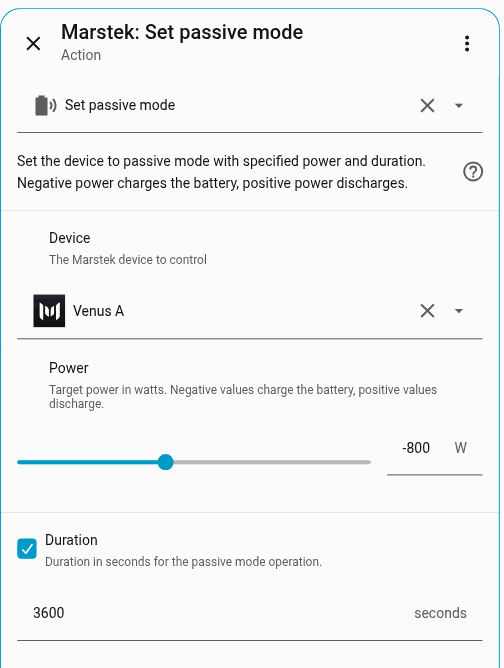
marstek.set_passive_mode charges or discharges at a fixed power, in watts, for a number of seconds. Negative power charges, positive power discharges.
marstek.set_manual_schedule fills one time slot. marstek.set_manual_schedules fills several from a YAML list. marstek.clear_manual_schedules clears them.
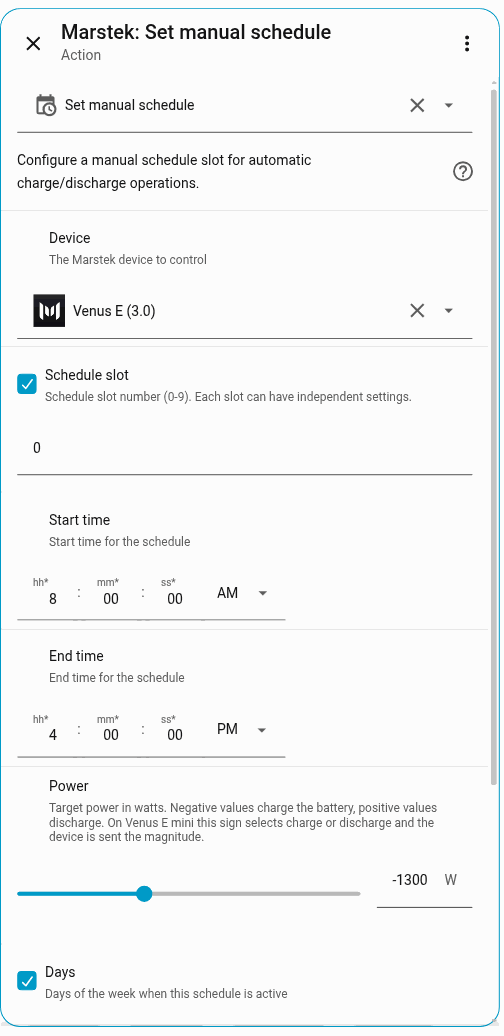
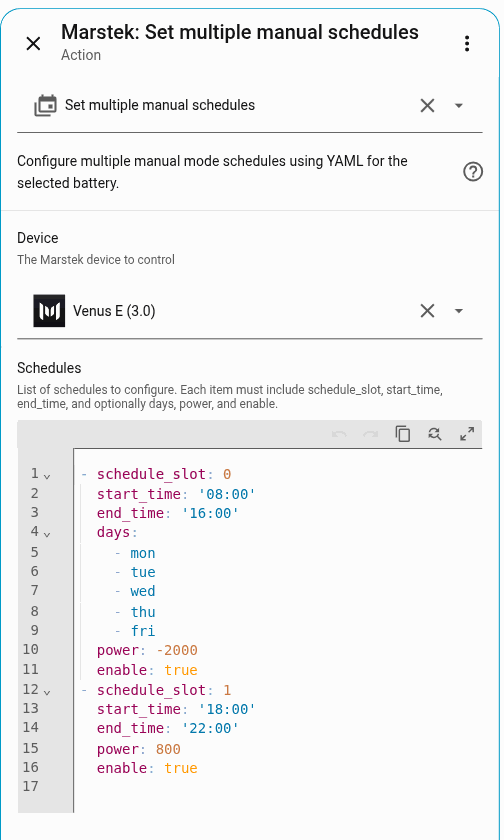
Ready-to-copy YAML is in Automations and services.
Energy dashboard and Repairs
Home Assistant's Energy dashboard needs sensors that count energy over the battery's whole lifetime. For a Marstek battery:
- Open Settings > Dashboards > Energy.
- Under Home battery storage, add Total grid input energy as energy going in to the battery and Total grid output energy as energy coming out. They count the battery's own AC connection, not your house's grid connection.
- For the grid, use your house meter, or Meter input energy and Meter output energy when the CT meter reports them.
- On Venus A or Venus D, read solar and the battery row before adding Total solar energy.
- Leave Total load energy off that dashboard. Its meaning depends on the device, so the integration does not recommend it as home consumption.
The entity names, units, and the cases where firmware counters stall are in Energy dashboard. Official setup of the dashboard itself is Home Assistant Energy.
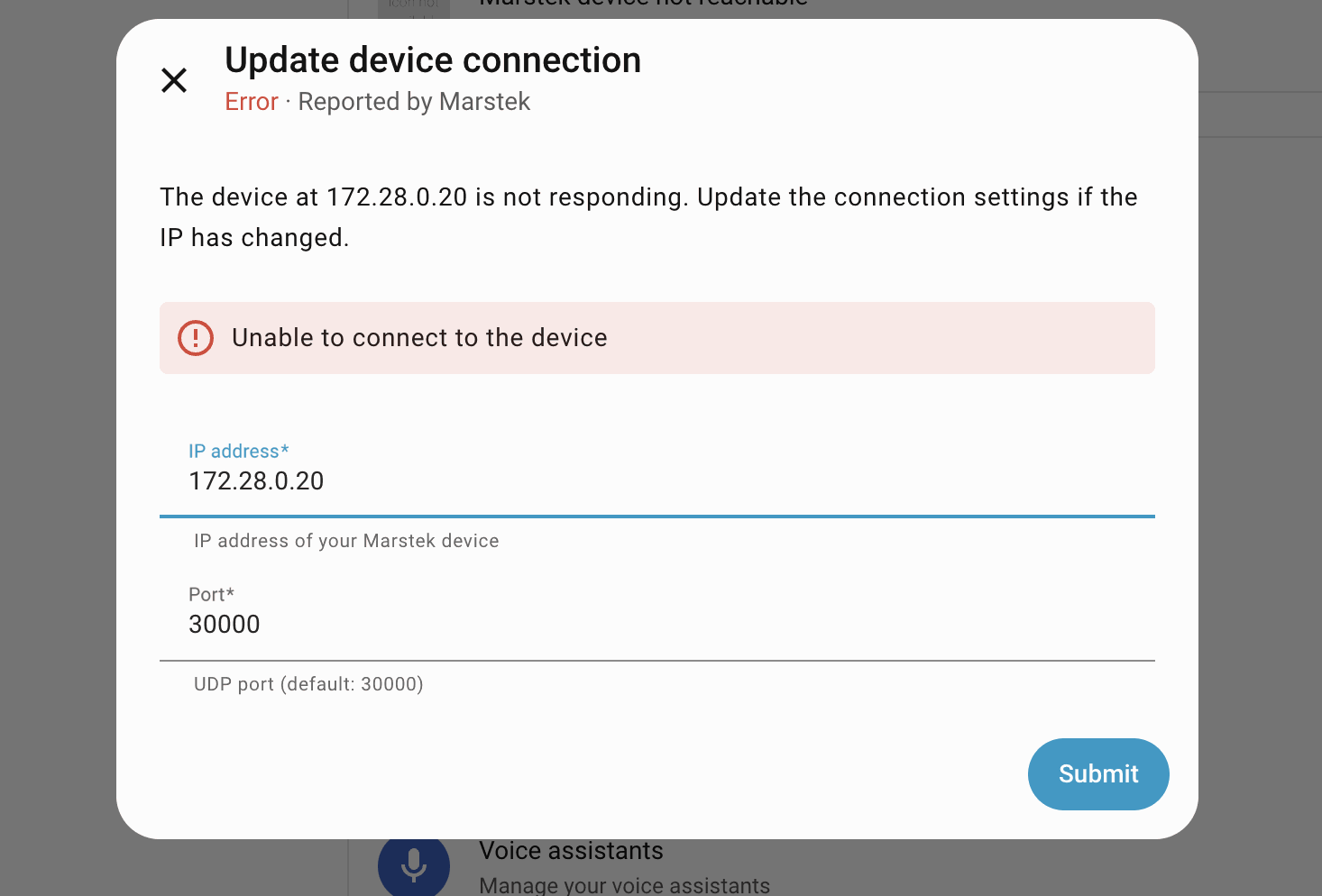
When Home Assistant loses the battery, Repairs (Settings > System > Repairs) offers a guided fix. You enter the new IP address and port. The integration checks that it is still the same battery, then reconnects.
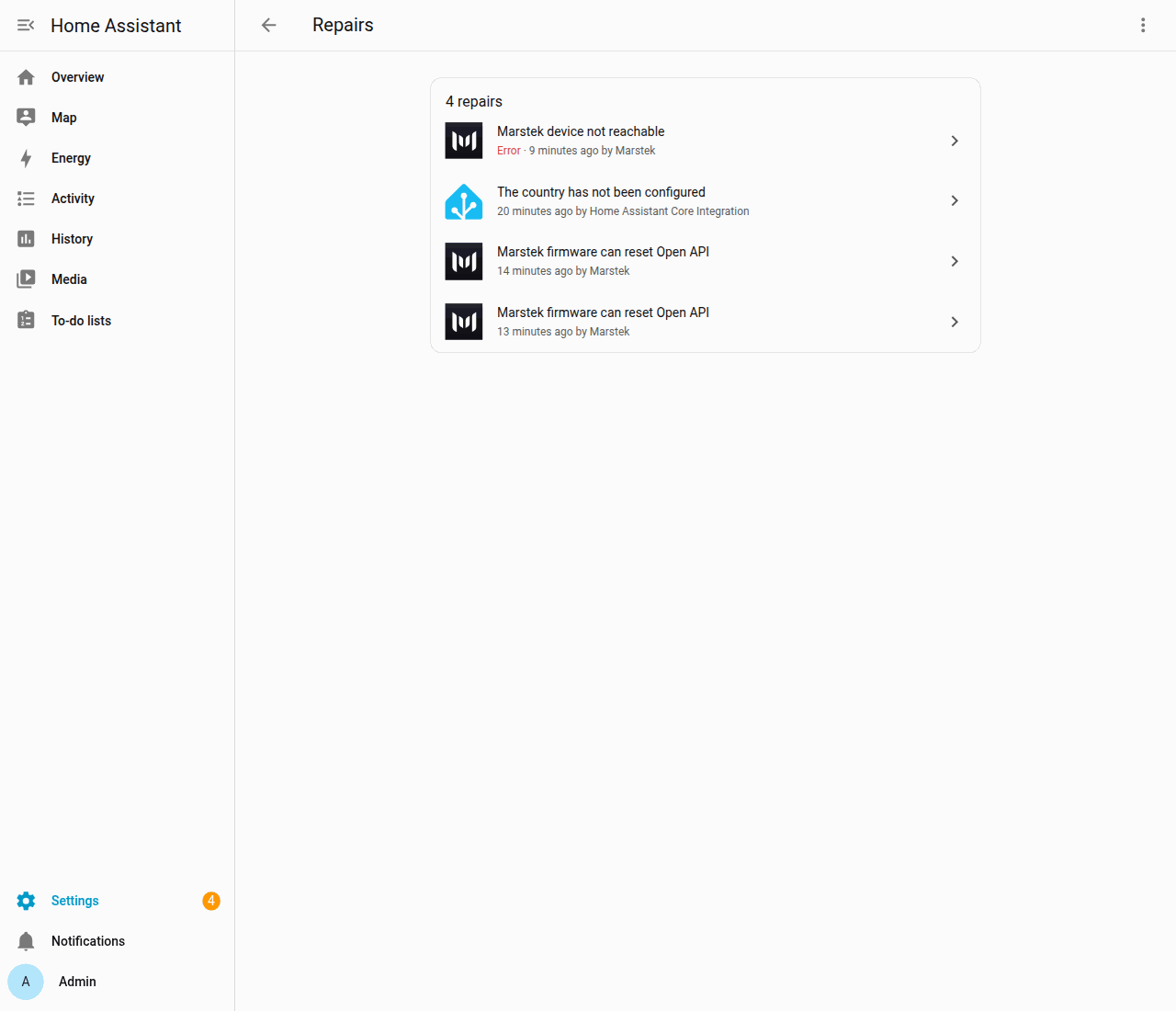
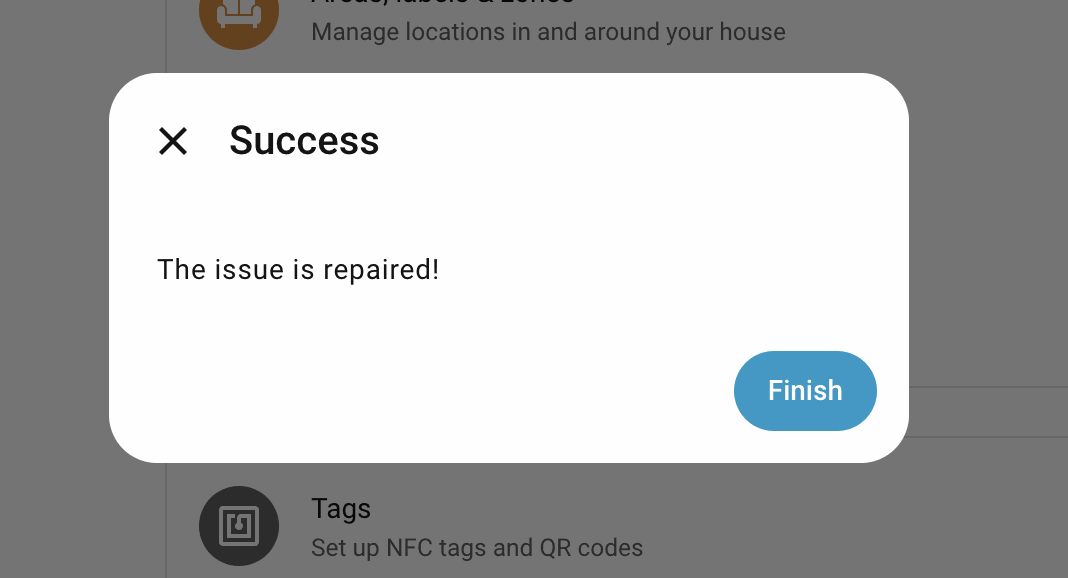
Firmware warnings, including Venus C sharing a Wi-Fi channel with its meter, are described in Repairs and Troubleshooting.